
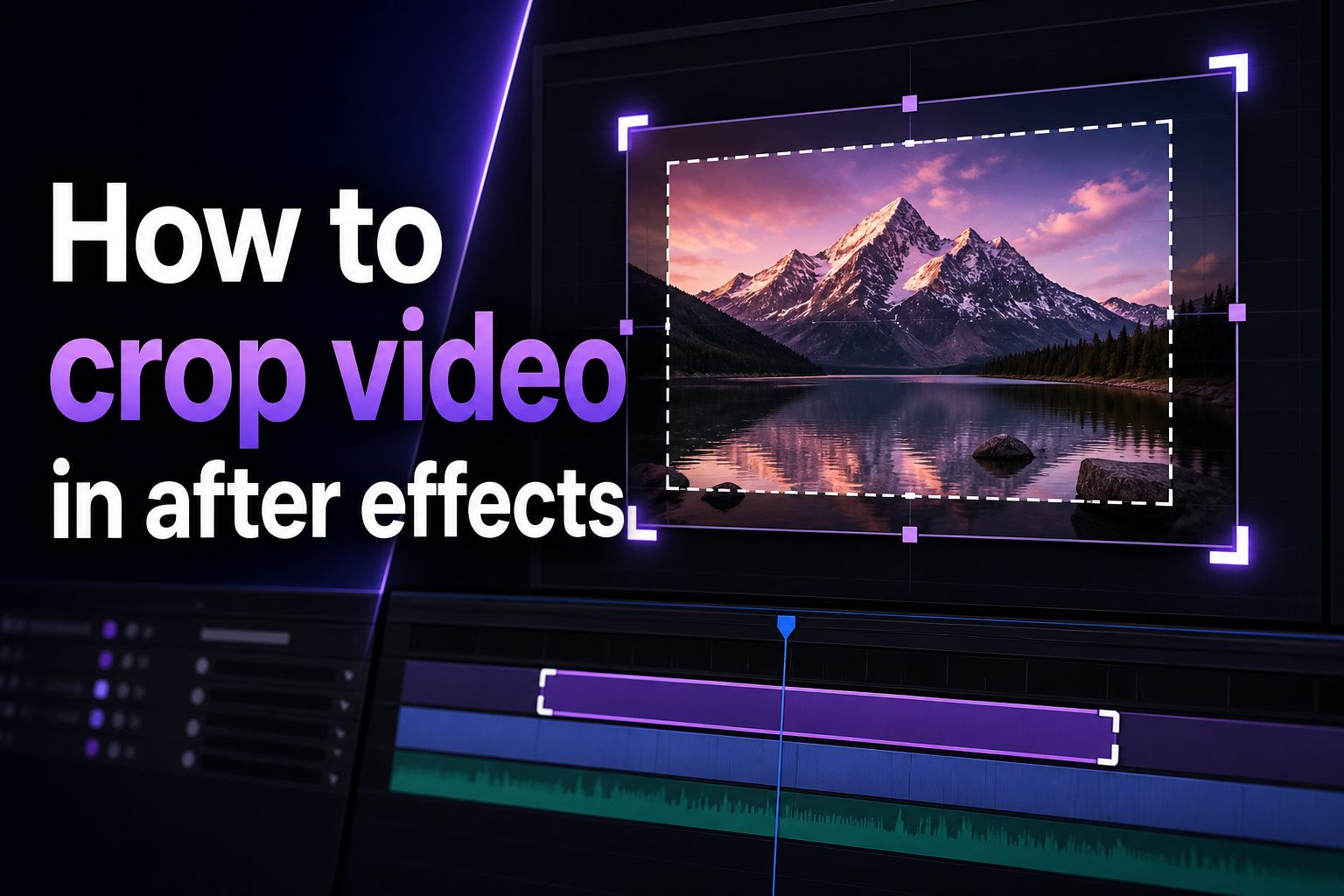
Learning how to crop video in After Effects is useful when you need to remove unwanted edges, reframe a shot, create a cleaner composition, or prepare footage for social media formats. Cropping may sound simple, but in After Effects it can mean several different things depending on whether you want to hide part of a layer, resize the composition, use a mask, or export a specific frame size.
Many beginners look for a crop tool and cannot find one because After Effects handles cropping differently from basic video editors. Instead of one universal crop button, you can use masks, the Region of Interest tool, composition settings, scale controls, or effects. Each method has a different purpose, and choosing the right one saves time.
This guide explains what cropping means in After Effects, why it matters, and how to crop footage cleanly without losing quality. You will also learn practical examples, common mistakes, best practices, expert tips, and answers to frequent questions so you can crop videos with confidence.
Cropping a video means cutting away or hiding part of the visible frame. In After Effects, this can be done to a single layer, an entire composition, or the final exported video size.
The most common reason to crop footage is to remove distractions from the edges of a shot. This could include camera borders, unwanted objects, black bars, or parts of a screen recording.
Cropping is also useful for changing aspect ratio. For example, you may turn a horizontal video into a vertical short, a square social post, or a tighter cinematic frame.
After Effects gives you more control than many basic editors because cropping can be animated, feathered, tracked, or combined with masks and effects.
The key is knowing whether you want a visual crop, a composition crop, or an export crop. Once that choice is clear, the workflow becomes much easier.
How Do You Crop Video In After Effects?
1. Crop With A Mask
A mask is one of the most flexible ways to crop video in After Effects. Select your video layer, choose the Rectangle Tool, and draw over the area you want to keep. Everything outside the mask becomes hidden, while the original layer remains editable. This method is ideal when you want to crop only one clip.
2. Crop With Region Of Interest
The Region of Interest tool lets you define a smaller preview area inside the composition. After drawing the region, you can crop the composition to that area through the composition menu. This works well when you want the entire project frame to become smaller, not just one visible layer.
3. Crop By Changing Composition Size
Changing composition settings is the cleanest method when your final video needs a new width and height. Open Composition Settings, adjust the dimensions, and reposition your footage inside the new frame. This is especially helpful for creating vertical, square, widescreen, or custom-format videos.
4. Crop With The Scale And Position Controls
Sometimes you do not need a technical crop at all. You can scale the video up and reposition it so unwanted areas move outside the composition frame. This is a fast method for reframing footage, but it can reduce sharpness if you scale the video too much.
5. Crop With Effects
After Effects includes effects that can trim visible edges or create cropped looks. Effects are useful when you want numerical control or need to animate edge changes over time. However, masks and composition settings are usually easier for beginners and more predictable for standard video cropping.
6. Crop During Export
Export settings can sometimes define the final output size, but this should not be your main cropping method. It is better to set the composition correctly before exporting. That way, your preview matches the final video and you avoid surprises after rendering.
Why Cropping Video In After Effects Matters
1. Cropping improves composition by helping viewers focus on the most important part of the frame.
2. Cropping removes distractions such as black borders, unwanted background objects, screen edges, or empty space.
3. Cropping helps convert videos for platforms that require vertical, square, landscape, or custom aspect ratios.
4. Cropping can make old footage feel more polished when the original framing is loose or uneven.
5. Cropping supports creative effects, including split screens, picture-in-picture layouts, animated reveals, and close-up emphasis.
Best Tools For Cropping In After Effects
- Mask Tool: Use masks when you want to crop a single video layer while keeping the composition size unchanged. Masks are precise, editable, and easy to animate.
- Region Of Interest: Use Region of Interest when you want to define a smaller part of the composition and crop the entire comp to that selected area.
- Composition Settings: Use composition settings when the final video format must change, such as moving from widescreen to vertical or square.
- Position Controls: Use position controls to move the video inside the frame after cropping or resizing the composition.
- Scale Controls: Use scale controls to zoom into the footage, but avoid excessive scaling because it can make the video look soft.
- Precompositions: Use precompositions when a cropped layer has multiple effects, animations, or nested elements that need to stay organized.
Common Cropping Mistakes To Avoid
1. Cropping The Wrong Layer
A common mistake is applying a mask or crop effect to the wrong layer. This can hide the wrong footage or create confusing results in a stacked composition. Always select the exact video layer first, then check the timeline to confirm the crop is applied where intended.
2. Changing Composition Size Too Late
If you crop after finishing all animation, text placement, and effects, you may need to reposition many elements. Set your target composition size early whenever possible. This keeps your design consistent and prevents extra cleanup before export.
3. Scaling Footage Too Much
Scaling a clip far beyond its original resolution can reduce image quality. A small zoom is usually fine, but heavy scaling may create blur, noise, or softness. If you need a tight crop, start with high-resolution footage whenever possible.
4. Forgetting About Aspect Ratio
Cropping without planning the aspect ratio can lead to awkward framing or platform problems. Before you crop, decide whether the final video should be horizontal, vertical, square, or custom. This helps you frame the subject correctly from the beginning.
5. Ignoring Safe Areas
When cropping for social media, captions, or interface overlays, important content can get covered. Keep faces, text, logos, and key movement away from the extreme edges. A clean crop should feel intentional on both mobile and desktop screens.
6. Exporting Without Previewing
Never assume the crop looks correct just because the timeline appears fine at one moment. Preview the full composition before rendering, especially if the crop is animated. Check the start, middle, and end to catch unwanted movement or cut-off details.
Cropping video in After Effects is not limited to one tool. You can use masks, Region of Interest, composition settings, scale, position, and export choices depending on the result you need.
For single-layer crops, masks are usually the fastest option. For final video size changes, composition settings are usually the cleanest method. For reframing, scale and position controls are often enough.
The best workflow is to choose your target aspect ratio early, keep important content visible, preview before exporting, and avoid unnecessary scaling. With those habits, cropping becomes a simple and reliable part of your After Effects workflow.
FAQs About How To Crop Video In After Effects
What Is The Easiest Way To Crop Video In After Effects?
The easiest way is to select the video layer and draw a rectangular mask around the area you want to keep. This hides the unwanted parts of the layer without changing the entire composition size, making it simple for beginners.
Can I Crop The Whole Composition In After Effects?
Yes, you can crop the whole composition by using the Region of Interest tool and then cropping the composition to that selected area. You can also manually change the width and height in Composition Settings for more precise control.
Does Cropping Video Reduce Quality?
Cropping itself does not reduce quality if you are only hiding parts of the frame. Quality loss usually happens when you scale footage up too much after cropping. Higher-resolution footage gives you more room to crop while keeping sharp results.
How Do I Crop A Video For Instagram Or TikTok?
Create a new composition with the correct vertical or square dimensions, then place your footage inside it. Use scale and position controls to reframe the subject. This approach helps you preview the final social media layout before exporting.
Can I Animate A Crop In After Effects?
Yes, masks and effects can be animated with keyframes. You can change mask paths, move crop boundaries, or reveal parts of the video over time. This is useful for transitions, motion graphics, split screens, and creative framing effects.
Should I Crop Before Or After Editing?
It is usually better to decide the final frame size early, especially for social media or client work. You can still make small crop adjustments later, but setting the composition format first helps avoid layout problems with text, graphics, and motion.